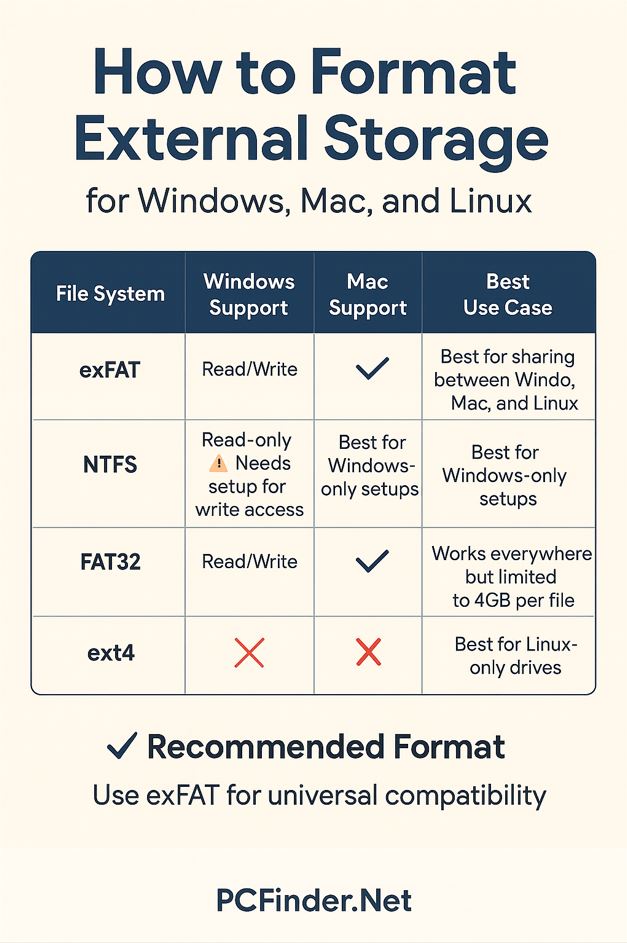
How to Format External Storage for Windows, Mac, and Linux
External storage drives are essential for backups, file sharing, and extra space — but choosing the right format is key if you want smooth compatibility across devices. Whether you’re on Windows, macOS, Linux, or all three, this guide explains the best formats, when to reformat, and how to set up your drive for maximum usability.
Why Formatting Matters
When you buy an external hard drive or SSD, it often comes preformatted — usually in exFAT or NTFS. But depending on how you plan to use it, you might need to reformat the drive so it works seamlessly with your setup.
Formatting a drive:
- Erases all data (always back up first)
- Defines how files are stored and read
- Determines compatibility with operating systems
Best File System Formats
Here’s a quick comparison of the most common file systems for external storage:
| File System | Windows Support | Mac Support | Linux Support | Best Use Case |
|---|---|---|---|---|
| exFAT | ✅ Read/Write | ✅ Read/Write | ✅ Read/Write | Best for sharing between Windows, Mac, and Linux |
| NTFS | ✅ Read/Write | ⚠️ Read-only (unless drivers installed) | ⚠️ Needs setup for write access | Best for Windows-only setups |
| FAT32 | ✅ Read/Write | ✅ Read/Write | ✅ Read/Write | Works everywhere but limited to 4GB per file |
| ext4 | ❌ No | ❌ No | ✅ Read/Write | Best for Linux-only drives |
Recommended Format for Most Users
For universal compatibility, exFAT is the best choice. It:
- Works on Windows, Mac, and Linux without extra drivers
- Supports large files (unlike FAT32)
- Is reliable for both backups and daily use
How to Format Your External Drive
Windows
- Plug in the external drive
- Open This PC, right-click the drive, and select Format
- Choose exFAT or NTFS as the file system
- Click Start to format
macOS
- Open Disk Utility
- Select the external drive
- Click Erase
- Choose exFAT or APFS (for Mac-only use)
- Confirm to format
Linux
- Plug in the drive
- Open the Disks utility or use
gparted - Select the drive and choose Format
- Pick exFAT or ext4 (for Linux-only use)
Tips for Managing External Drives
- Always safely eject drives to prevent data corruption
- Use clear folder names for better organization
- Keep backups of important files, especially when sharing between multiple OS environments
- Reformat periodically if you switch the drive’s primary purpose
Popular Keywords for Search Optimization
- external drive formatting
- format external storage Windows Mac Linux
- best format for external hard drive
- exFAT vs NTFS vs FAT32
- external SSD compatibility
Final Thoughts
Choosing the right format ensures your external storage drive is ready for whatever you need — whether it’s sharing files, backups, or long-term storage. For most users, exFAT offers the perfect balance between compatibility and performance.
Want more guides on tech and storage tips? Visit PCFinder.NET for expert insights and step-by-step tutorials!